Microsoft Teams Guide
All Mud Club sessions start in Microsoft Teams. This guide walks you through signing in, joining your session, and finding your way around.

1. Download Microsoft Teams
Download the Teams app on a computer (recommended)
Or open Teams in your browser at teams.microsoft.com
The app works best for audio, video, and screen sharing.

2. Log in with your Mud Club account
Open Teams and click Sign in
Enter the username from your welcome email
Enter the password from your welcome email
⚠️ Please don’t change this password. It’s linked to your child’s Mud Club setup.

3. Find your teams & Join the first session
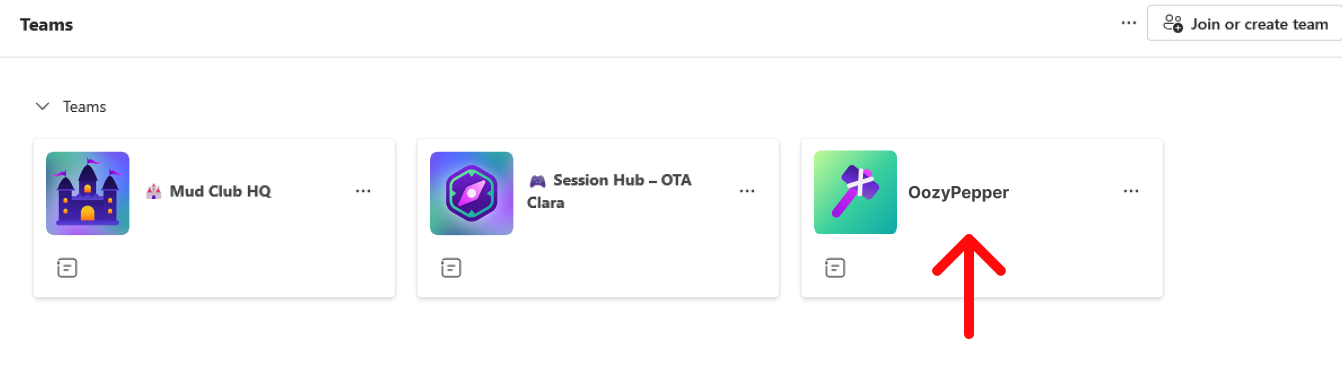
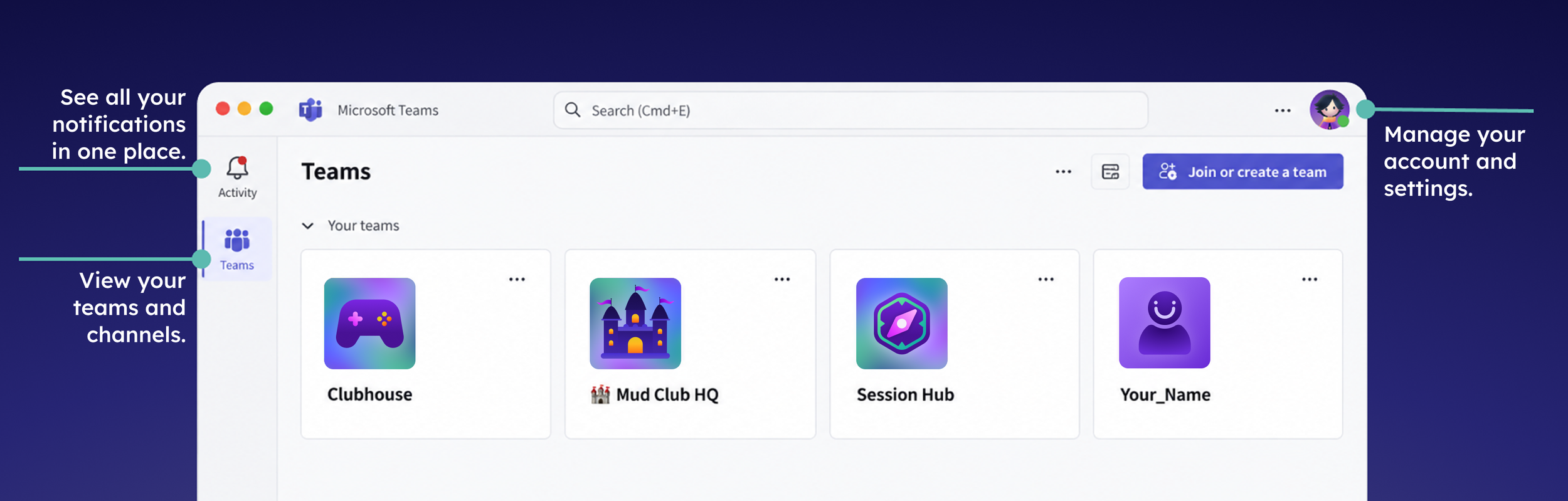
You’ll see teams: Mud Club HQ, Session Hub, and one with your child’s name.
Open the team with your child’s name
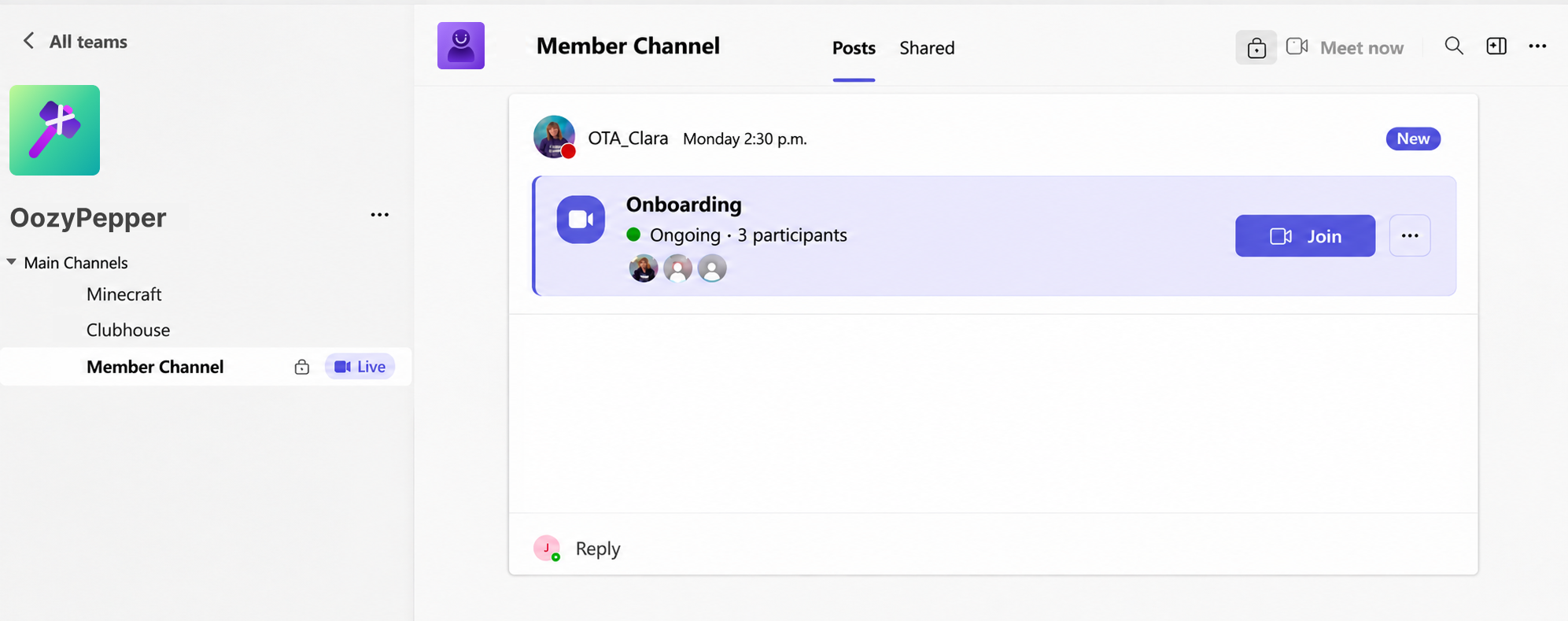
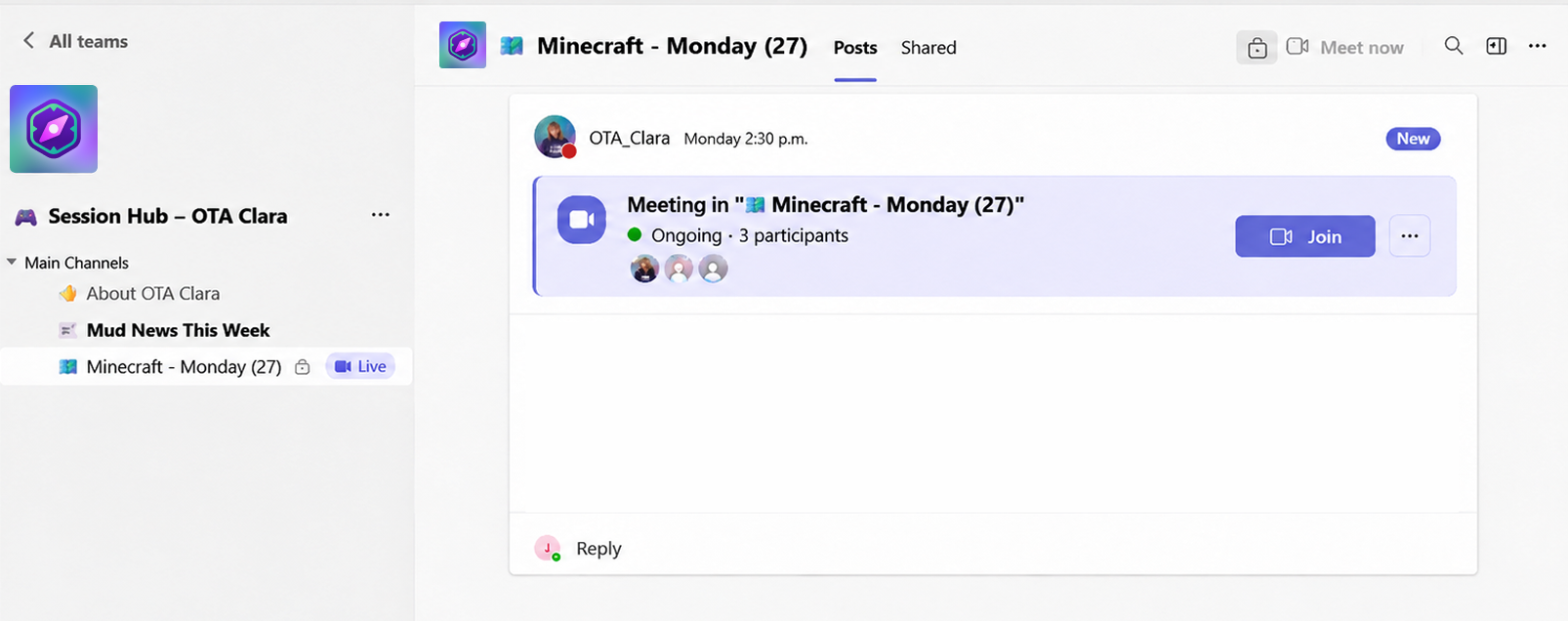
At session time, click Join
Don’t see “Join”: Send a message in the channel, or stay online and we’ll call your child in.
4. Join every session after
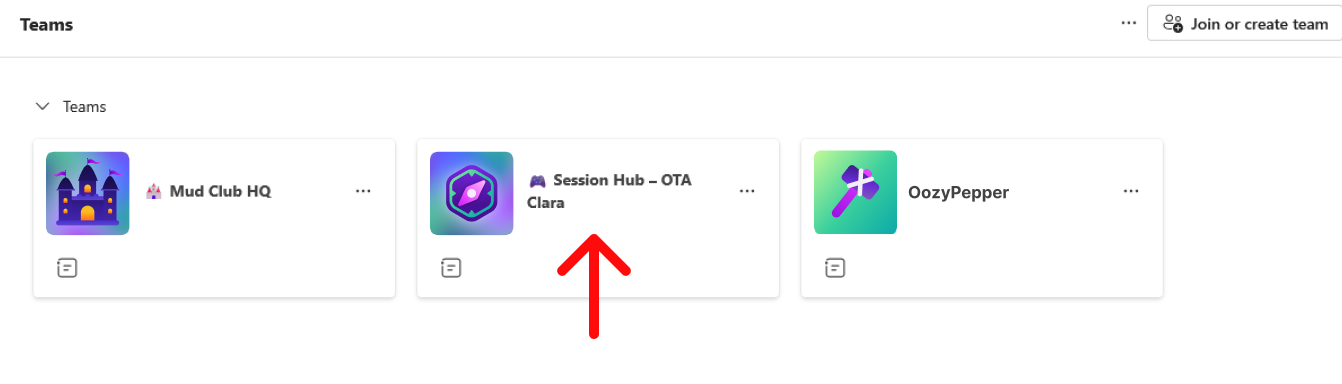
From the second week on, sessions happen in Session Hub.
Open Session Hub
At session time, click Join
Explore Teams
Get to know your teams
Each team has its own purpose:
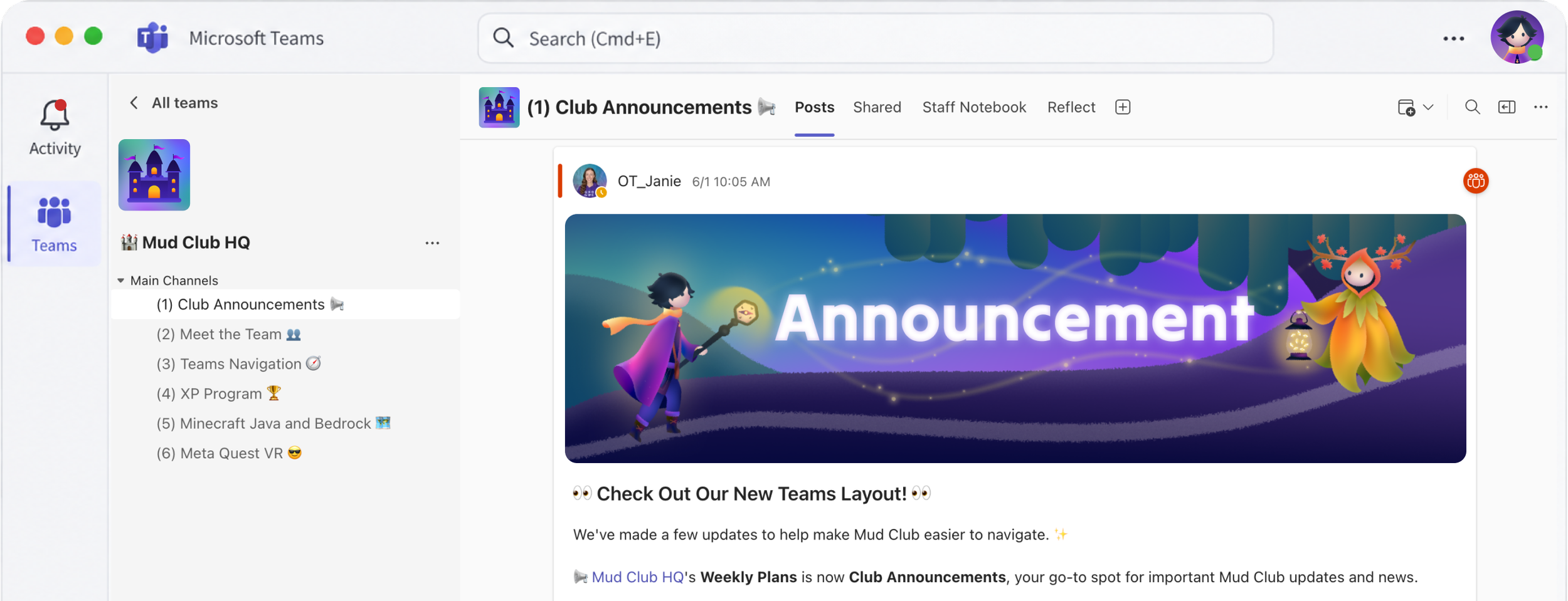
🏰 Mud Club HQ: announcements, team intros, and guides
🧭 Session Hub: where weekly sessions happen
👤 Member Channel: a private space for your child and our team
🎮 Clubhouse: optional evening drop-ins with other members
Check Mud Club HQ for news and guides
Track and redeem XP
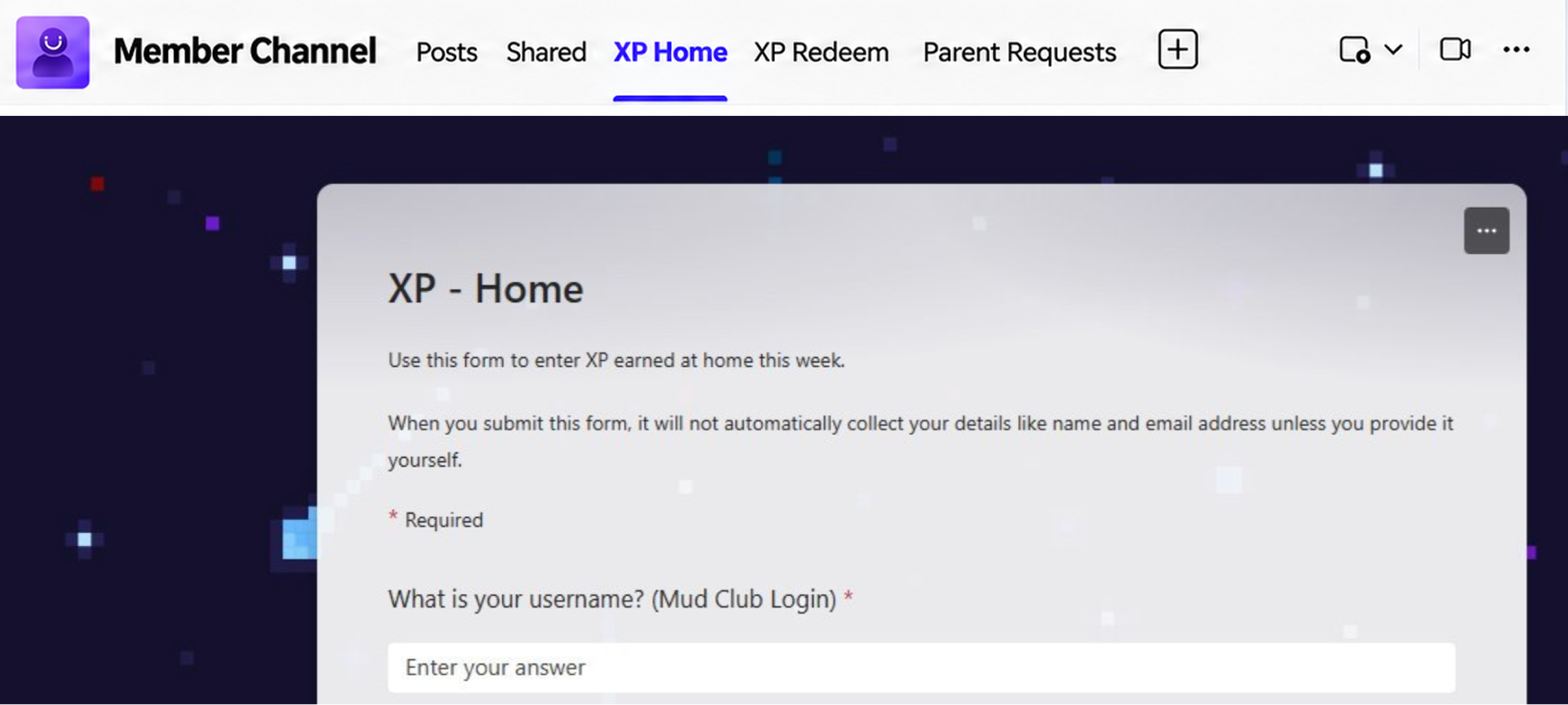
Your child earns XP for attending sessions, completing challenges, and reaching goals at home. Here’s where XP lives in Teams.
Submit weekly XP
Open the team with your child’s name
Click the XP Home tab
At the end of each week, fill in the form with your child’s XP total
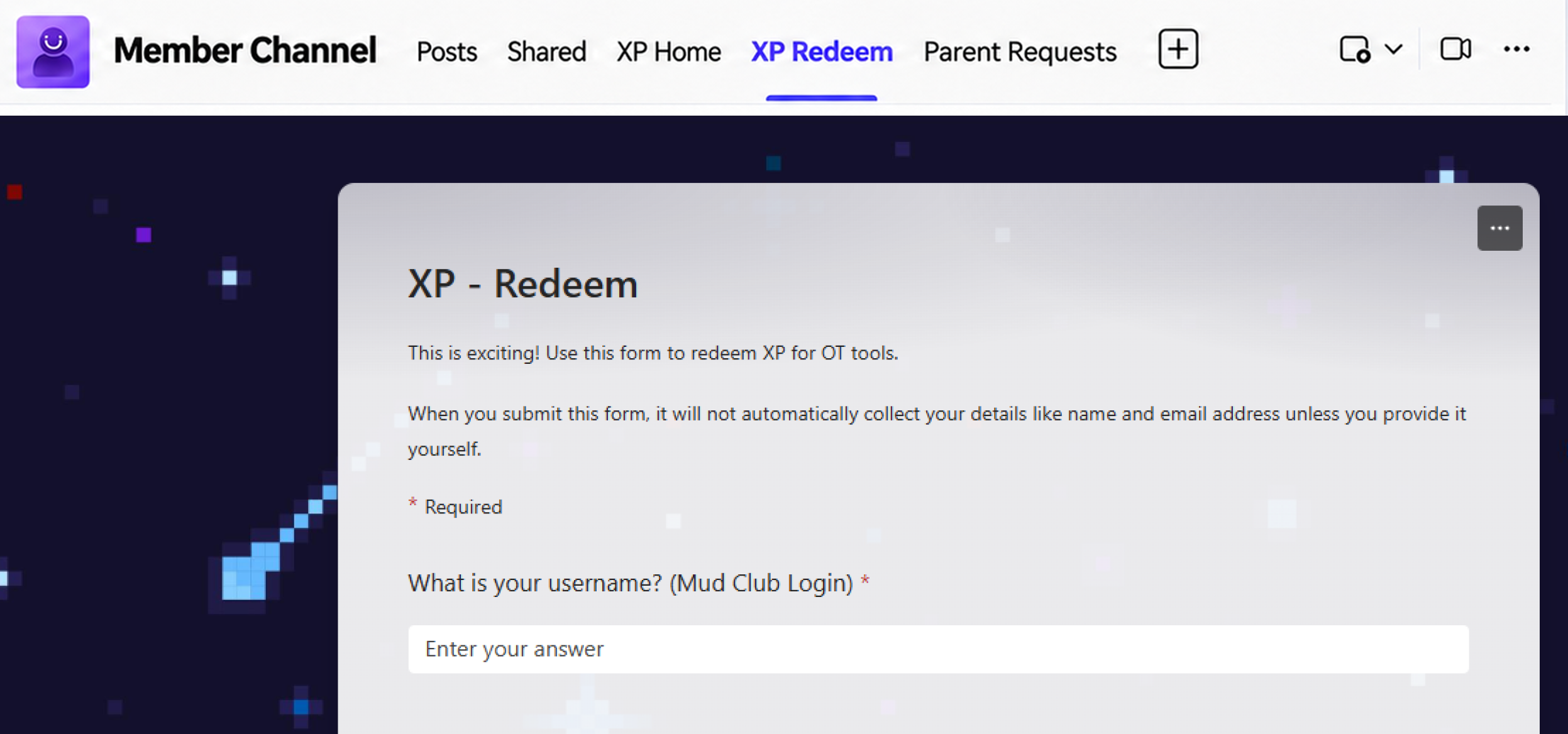
Redeem a reward
Click the XP Redeem tab
Submit the request
Our team reviews each request. We always check with a parent before finalizing a reward.
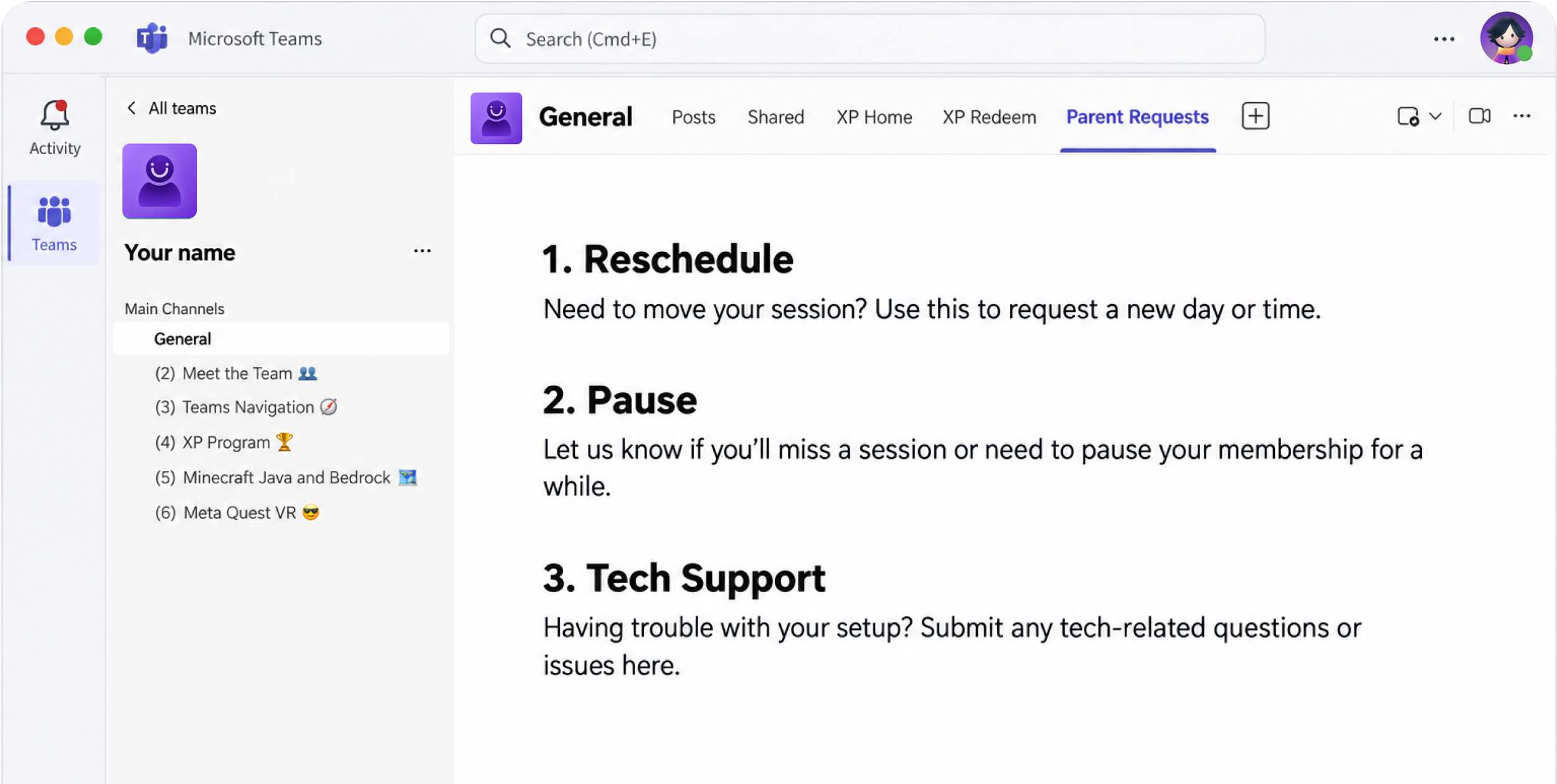
Make a request in Parent Requests
Need to change something? You can send us a request right from Teams.
Open the team with your child’s name
Click the Parent Requests tab at the top
Choose what you need:
Reschedule: move a session to a new day or time
Pause: let us know about a missed session, or pause your membership
Tech Support: get help with any setup or tech issue
Fill in the form and submit
Using the form helps us track your request and get it to the right team member.