

Xbox Privacy Settings
Minecraft multiplayer is controlled by Xbox privacy settings on every device, including PC, tablet, and console.
Here’s how to set them so your child can join Mud Club sessions. It takes about 5 minutes.

1. Sign in as a parent
Go to account.xbox.com/settings and click Sign in
Use the parent or family organizer Microsoft account
⚠️ Changes must be made from the parent account, not your child’s login.
2. Select your child’s profile
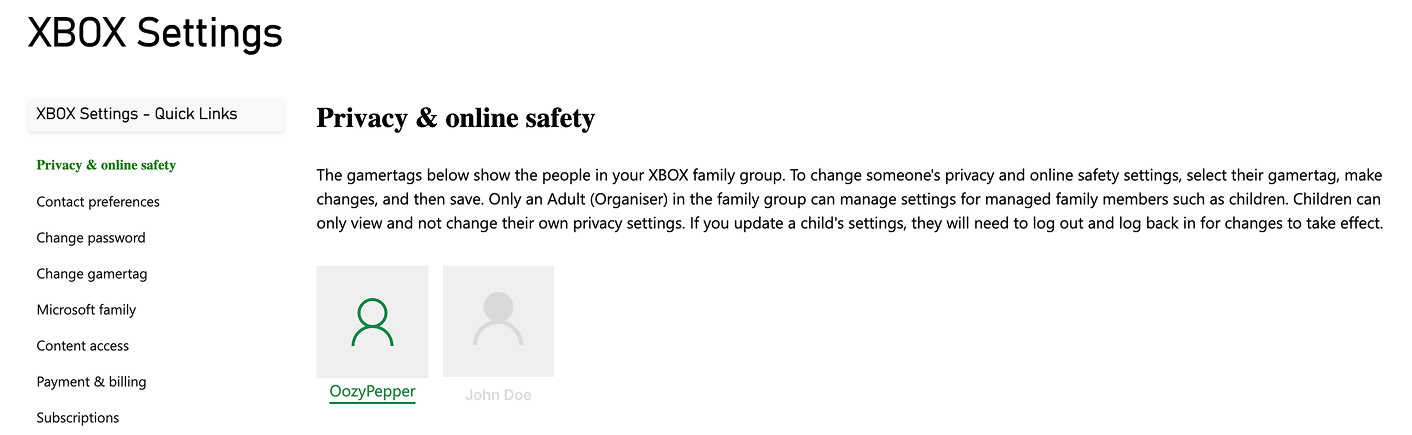
3. Select Privacy

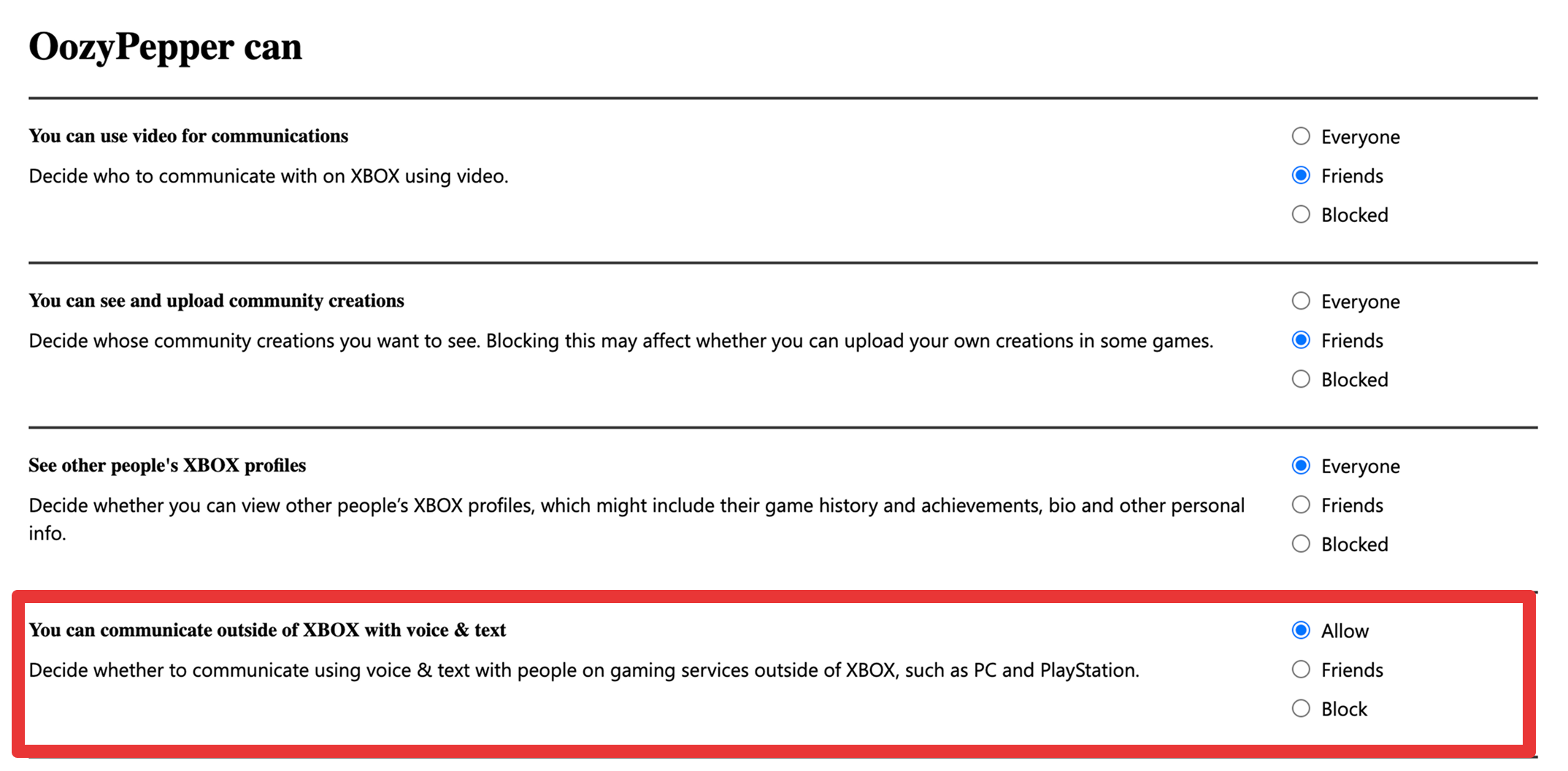
Mud Club sessions may use in-game text or voice chat.
Set this to Allow: You can communicate outside XBOX with voice & text
Prefer limited communication? Let us know, and our staff can adapt sessions.
4. Selext Xbox Online Safety

Set these to Allow:
You can join cross-network play
You can join multiplayer games
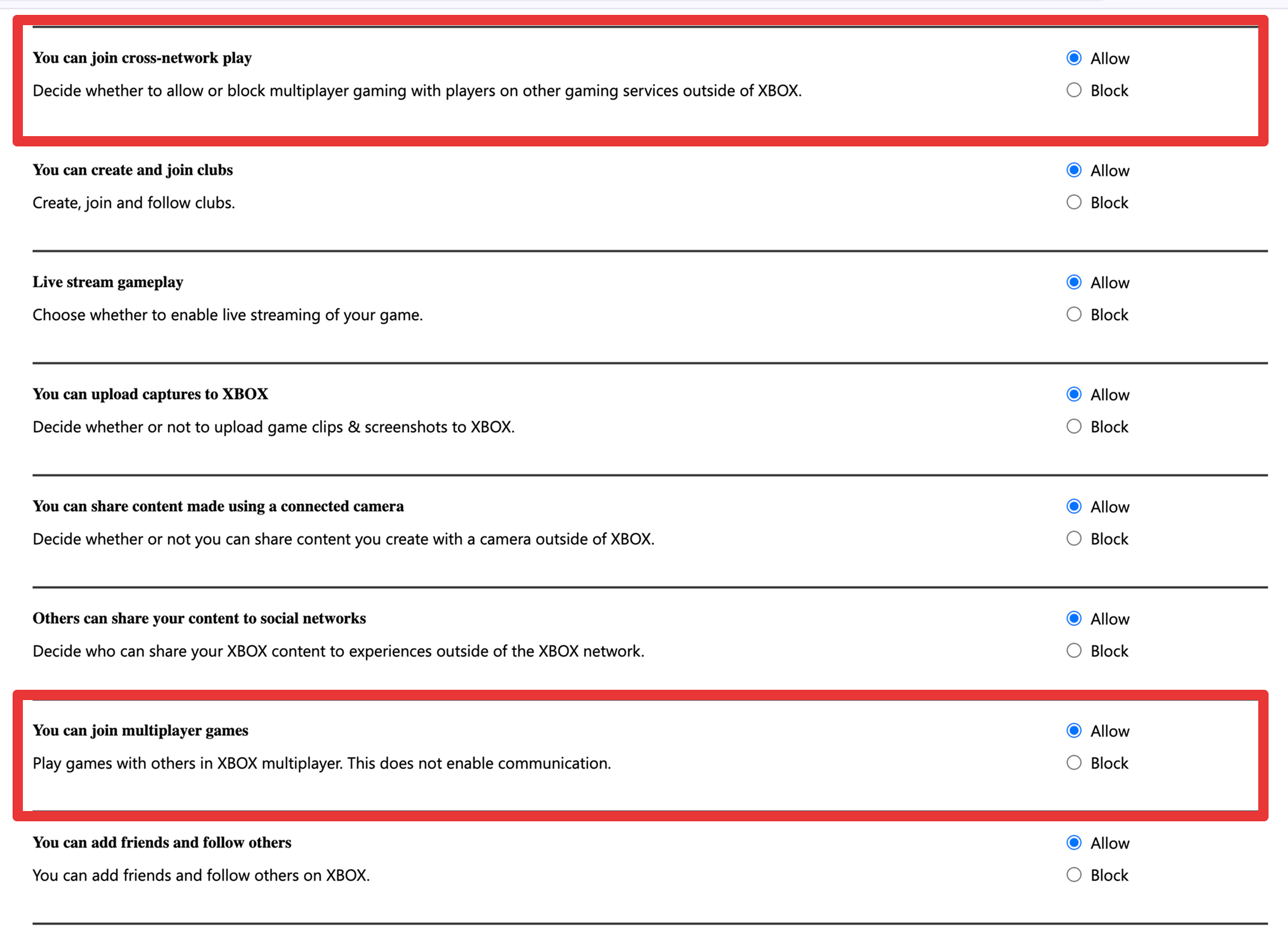
Recommended: set “You can add friends” to Allow. Not required, but it helps connections run smoother.
5. Submit and restart Minecraft

Click Submit
Have your child log out of Minecraft and log back in
🔄 Changes can take a while to apply, so we recommend doing this a few days before orientation.
Stuck on a step?
Email us at hello@mudclub.ca and we’ll help you sort it out.
Mud Club uses private, invite-only Minecraft servers, moderated by our staff. No public servers, no open chat rooms